The Collaborate "configuration" feature allows you to customize the end-user experience to a certain extent, using advanced configuration options. These options get applied by deploying a JSON configuration file to your devices, either manually or remotely via Ari Business. The below list is somewhat technical - the main intended audience being an IT admin or similarly inclined role looking to ensure the behavior of Collaborate adheres to expectations & security concerns tailored to their organization.
The currently supported options for the configuration file are the following:
-
graphUrl: String – the Microsoft Graph API endpoint - in case it differs for your region due to firewall settings. The default value is https://graph.microsoft.com/v1.0.
-
tenantId: String – the Azure Tenant ID - in case you want to restrict the Collaborate application login on your devices to a single Azure Tenant. The default value is “organizations”, allowing logging in to any organization.
-
applicationId: String - the Azure application ID for Collaborate, with a set of permissions, registered clients, and other settings. The default value is “32dfa5db-1bf5-4c70-bb8b-ab2fe987bf2b", the ID of the RealWear Collaborate Azure application.
-
addonBackendUrl: String – the URL for getting a "Connect me" code and anonymous communication token. Contact us if you want to use the “Connect me” function with your custom back-end.
-
communicationTokenFetchUrl: String – the URL address of the Azure cloud function used to generate Azure communication tokens. Usually, it is customized together with applicationId, in case you want to host the Azure infrastructure on your own.
-
graphApiScopes: List<String> - the minimum set of permissions (scopes), asked when the user logs into the application. If more permissions were granted, they will be retrieved by the app. The default value is ["Calendars.Read"].
-
azureApiScopes: List<String> - scopes, asked to be able to access the `communicationTokenFetchUrl` Azure Function on behalf of the logged in user. The default value is ["api://app.realwearteams.com/32dfa5db-1bf5-4c70-bb8b-ab2fe987bf2b/access_as_user"].
-
teamsIdentityScopes: List<String> - scopes, requested when executing the in order to get an Azure Communication token for the user. The default value is [ "https://auth.msft.communication.azure.com/Teams.ManageCalls",
https://auth.msft.communication.azure.com/Teams.ManageChats], as per https://learn.microsoft.com/en-us/azure/communication-services/quickstarts/manage-teams-identity?pivots=programming-language-java#step-3-add-the-communication-services-permissions-in-the-application -
enableAddonCalls – a feature flag, indicating whether the “Connect me” calls should be enabled or disabled in the app. The default value is “true”.
-
flashOnRinging - a feature flag, indicating whether the application should flash with a flashlight when there is an incoming call. The supported values are "0" - meaning the device will not flash the torch when ringing OR "1" - meaning the device will flash the torch when receiving a call. Default value if not explicitly specified in the configuration file is "1".
-
allowedMeetingOrganizer - a feature flag, indicating who can be the organizer of the displayed calendar meetings. Any other calendar events will be hidden. The supported values are "any" - any user from any tenant can be the organizer OR "organization" - only events organized by users belonging to the same Azure Tenant will be displayed. Default value if not explicitly specified in the configuration file is "any".
- contactsSource - indicates where we shall fetch the Contacts from. The contacts search in the official Teams client is a set of several APIs requiring different permissions. We allow configuring which contacts you want to show in the application. The supported values are:
- "organization" - only the internal users of your Azure Tenant.
- "orgAndExternals" - the internal users of your Azure Tenant as well as Guest users.
- “peopleWithChats” - the internal users of your Azure Tenant excluding Microsoft Bookings. The “People.Read” permission is mandatory, otherwise the Contacts menu card will be unavailable. If the “User.ReadBasic.All” permission is provided, the Guest users will also be appended. If the “Chat.ReadWrite” permission is provided, the External users from different Azure Tenants that you have chats with will also be appended.
Default value is "organization".
-
allowedMeetingAttendeeDomains: List<String> - allows you to hide meetings, where any participant is outside this whitelist, e.g. ["realwear.com"]. If the list is empty, the whitelist is not applied, and all the meetings are shown. The default value is [] (empty list).
-
hideInCallOverlayUi: Boolean – a feature flag, indicating whether you want to join meetings and calls with the commands UI hidden. You can later show the UI by saying “Show interface”, and hide again by “Hide interface”. The default value is false.
-
whoToCallOnUnplug:
Object - An optional contact to immediately call when the device is unplugged.
- id: String (Required) – The Azure Object ID of the user.
- displayName: String (Optional) – The name displayed for the contact. If empty, the app will attempt to fetch the name from your contacts.
- countdownSeconds: Int (Optional) – The number of seconds the countdown screen is displayed before the call is initiated. Default value is 5.
Default value is null.
- blacklistedGroupIds: List<String> – a list of Azure AD group IDs used to hide specific groups and their members from Collaborate.
- Groups listed here will be hidden from My Teams if the logged-in user belongs to them.
- All members of the blacklisted groups will be hidden from Contacts.
- Members of blacklisted groups will also be hidden from non-blacklisted groups in My Teams.
- Maximum supported groups: 180. Group IDs must be valid Azure AD group IDs. Violating these rules may cause failures and abnormalities on the app. By default, the list is empty, and no filtering is applied.
- Ensure each blacklisted group contains less than 4995 (5 pages * 999) contacts, otherwise filtering will malfunction. A Whitelist filter will be introduced in the nearest future.
- answerOnUnplug: Boolean – a feature flag, indicating whether you should answer an incoming call when the device is unplugged. The default value is true.
- autoLeaveEmptyMeeting: Boolean – a feature flag, indicating whether the user should automatically auto-leave a meeting when the last participant leaves. If set to false, the user will remain in the call screen until they manually hang up. The default value is false.
Applying the Collaborate "Configuration"
There are three ways to apply the configuration file.
Using ADB
We recommend using this method to test your configuration file on individual devices.
Connect your device to a computer using a USB-C cable. Make sure ADB services are installed on the computer. Prepare a config.json file on your computer: for example, in the “Desktop/Collaborate/” folder. Now, execute the following ADB command in a Terminal window on your computer:
adb push ~/Desktop/Collaborate/config.json /storage/emulated/0/Android/data/com.realwear.acs/files/config.json
The first parameter specifies the path to the downloaded config file on your computer.
After the config file is successfully pushed to the device, you need to restart the Collaborate app, either by:
-
going to Recent Applications, stopping the application, and then re-opening it
-
by restarting the device and opening the app.
Using Ari Business
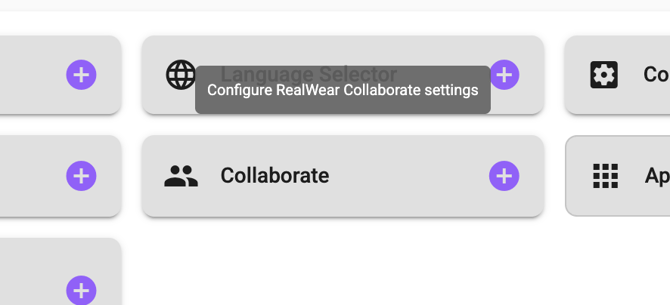
You can upload your configuration to a fleet of devices via https://cloud.realwear.com/app/. For that, navigate to the device or device group, and select the “Collaborate” option, as on the screenshot below. After you apply the configuration, you need to restart the device.
Using an MDM
This is possible as long as the MDM of your choice supports copying files to certain locations on the device. As an example, in SOTI MobiControl you can create a File Sync policy, upload your JSON configuration file and set the destination directory to “%sdcard%/realwear/com.realwear.acs/config/config.json”.
Sample JSON configuration
Below you will find a JSON configuration example that can be applied using the methods described above. You can delete any fields and only declare the ones you need, the rest will "fallback" to their default values.
{
  "graphUrl": "https://graph.microsoft.com/v1.0",
  "tenantId": "dbd66236-d847-4139-a681-1b2c55127f5b",
  "applicationId": "32dfa5db-1bf5-4c70-bb8b-ab2fe987bf2b",
  "addonBackendUrl": "https://app.realwearteams.com",
  "communicationTokenFetchUrl": "https://realwear-teams-token.azurewebsites.net/api/Function",
  "graphApiScopes": [
    "Calendars.Read"
  ],
  "azureApiScopes": [
    "api://app.realwearteams.com/32dfa5db-1bf5-4c70-bb8b-ab2fe987bf2b/access_as_user"
  ],
  "teamsIdentityScopes": [
    "https://auth.msft.communication.azure.com/Teams.ManageCalls",
    "https://auth.msft.communication.azure.com/Teams.ManageChats"
  ],
  "enableAddonCalls": true,
  "flashOnRinging": 1,
  "contactsSource": "organization",
  "allowedMeetingOrganizer": "any",
  "allowedMeetingAttendeeDomains": [],
  "hideInCallOverlayUi": false,
  "autoLeaveEmptyMeeting": false,
  "whoToCallOnUnplug": {
   "id": "8cd86fb0-9b01-4708-8e6-b7307be9b379",
   "displayName": "Emergency contact",
   "countdownSeconds": 15
},
  "blacklistedGroupIds": [
    "11111111-2222-3333-4444-555555555555",
    "66666666-7777-8888-9999-aaaaaaaaaaaa"
  ]
}