An Ari OS device can be locked with a PIN, so that it has to be unlocked before it can be used.
Opening the security settings
From any screen, say “MY SETTINGS”, then say “ADVANCED SETTINGS” to open the full settings. Say “SECURITY”, then say “SCREEN LOCK”.
The settings screens number each item on screen. You can choose an item either by saying its name, or by saying “SELECT ITEM” followed by the number shown beside it.
Choosing a screen lock
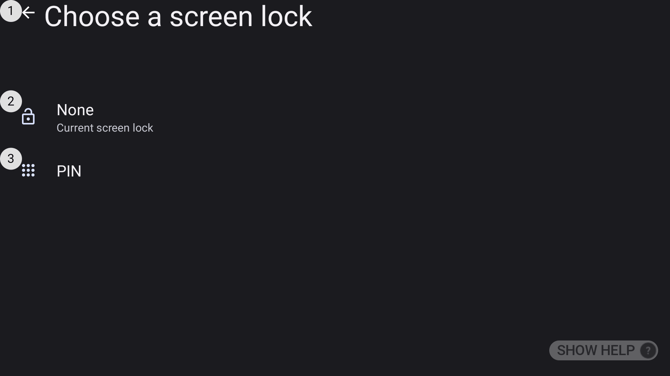
| Voice Command | Action |
|---|---|
| “NONE” | No lock. The device can be used without unlocking. |
| “PIN” | Locks the device with a number you choose. |
Setting a PIN
Say “PIN”. The Enter your PIN screen opens.
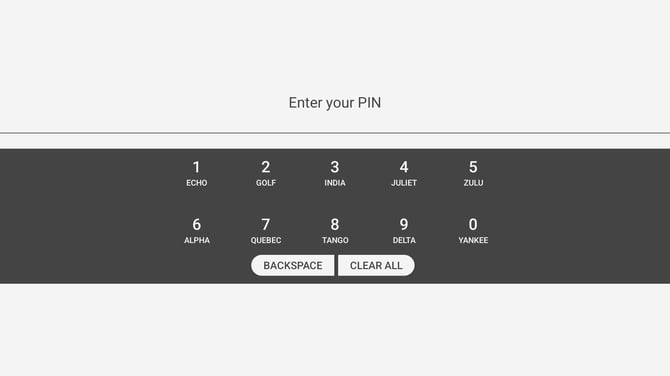
Each digit has a word printed beneath it. Say the word, not the number, so 1 is entered by saying “ECHO” and 4 by saying “JULIET”. The words are always the same, and they are always shown on screen.
Say “BACKSPACE” to remove the last digit, or “CLEAR ALL” to start again. Once you have entered enough digits, “ACCEPT” appears. Say it to continue.
The Re-enter your PIN screen asks for the same number a second time. Enter it the same way and say “ACCEPT” again.
Choosing what the lock screen shows
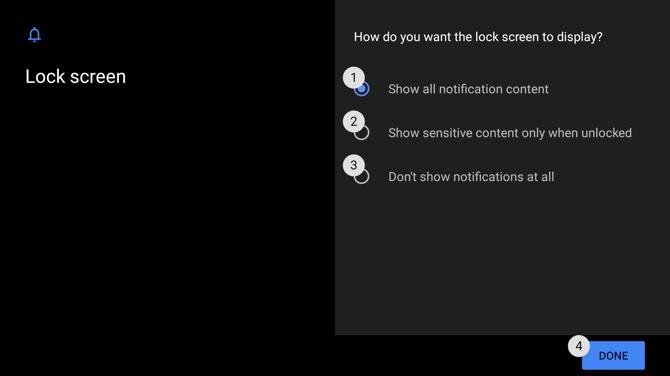
Choose one of the three options, then say “DONE”:
| Voice Command | Shown on the lock screen |
|---|---|
| “SHOW ALL NOTIFICATION CONTENT” | Every notification in full. This is the default. |
| “SHOW SENSITIVE CONTENT ONLY WHEN UNLOCKED” | Notifications appear, but their contents stay hidden until you unlock. |
| “DON’T SHOW NOTIFICATIONS AT ALL” | No notifications on the lock screen. |
Unlocking the device
From the lock screen, say “UNLOCK”, then enter your PIN by saying the word beneath each digit, and say “ACCEPT”.
Unlocking with a fingerprint
On devices with a fingerprint sensor, you can unlock by touch instead of saying your PIN. The sensor is on the surface of the power button: touch it lightly rather than pressing it.
A PIN is needed first. Fingerprint unlock is added on top of it, so there is always a way in if the sensor cannot read your finger.
To add a fingerprint, open Security and say “FINGERPRINT”, then follow the prompts. Say “NEXT”, touch the sensor, then lift your finger and touch it again as the screen asks, until it tells you the fingerprint has been added. Say “DONE”.
To add a second fingerprint, say “ADD FINGERPRINT” and repeat.
To unlock, touch the power button lightly from the lock screen.
Forgotten PIN
The device cannot be unlocked without it. Getting back in means a factory reset, which erases everything on the device. If your organisation manages the device, ask whoever administers it before resetting.