My Training is a tutorial for first-time users. It teaches the controls through practice: each step explains a control, then asks the user to operate it before continuing.
It runs on its own when a device is set up for the first time. After that, say "MY TRAINING" from My Programs to run it again.
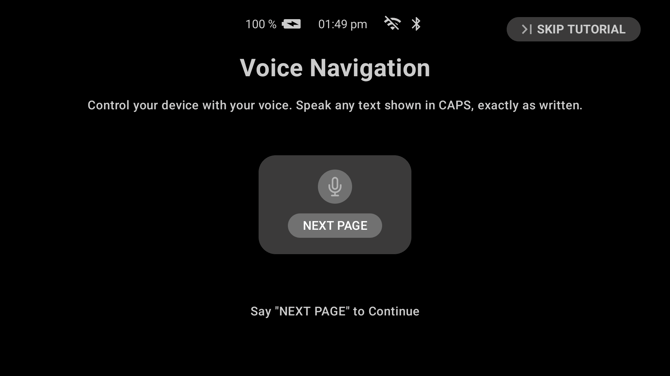
Every step follows this shape: a title, one line explaining the control, and an instruction at the bottom naming exactly what to say or press. The step does not advance until the user does it.
What it covers
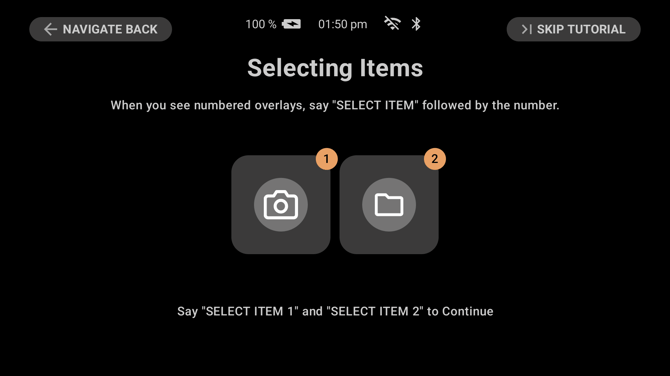
Running the device by voice. It teaches that words in capitals on screen are things you can say, then has you say "NEXT PAGE" to prove it. It goes on to "NAVIGATE HOME" and "NAVIGATE BACK", and to picking numbered items with "SELECT ITEM".
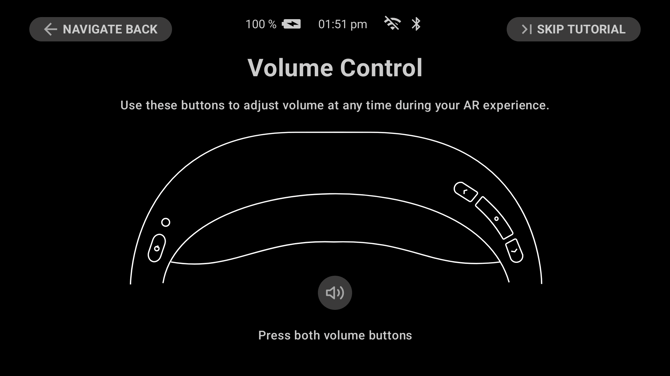
The buttons. It asks you to press the volume buttons, the home button, and the power button. Each step shows a diagram of the headset with the button in question marked, so you learn where it is as well as what it does.
Wearing the device, on a device with a boom arm. It walks through finding your dominant eye, putting the display on the correct side, fitting the device to your headgear, and positioning the arm so you can see all four corners of the screen. A device with a fixed display has nothing to position, so these steps do not appear and the tutorial opens on voice control.
Ari, on a device that has the assistant. It introduces Ari and asks whether you want it switched on. You can accept or choose Setup Later. If you accept, it teaches the "HEY ARI" wake phrase and has you say it, and shows that holding the home button does the same thing.
The touchpad, on a device that has one: swiping forward and back, a single tap to select and a double tap to go back.
Skipping the tutorial
Skip Tutorial is in the top right of every screen. Navigate Back appears in the top left from the second step onwards, to return to the previous step.
The device records that training is finished and does not start it again on its own. It stays in My Programs for as long as you want it.
If you have already answered the Ari question, those steps are left out when you run the tutorial again.