Say "MY MEDIA" to open the folder that holds the videos and audio files on your device. Videos you record with My Camera appear in a Camera folder inside it.
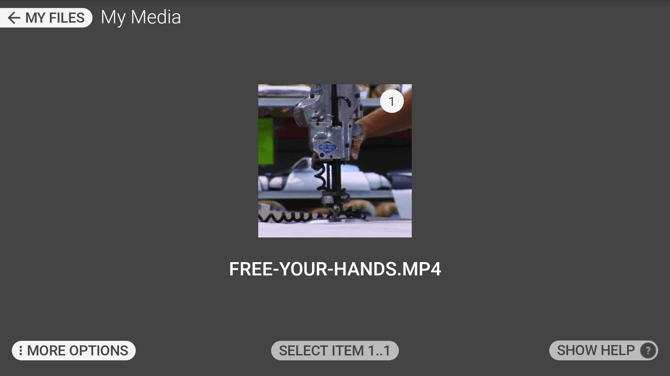
Say "SELECT ITEM" followed by the number shown on a file to play it, for example "SELECT ITEM 1". Playback starts on its own.
Playing a video
The elapsed and total time appear at the bottom of the screen while a video plays.
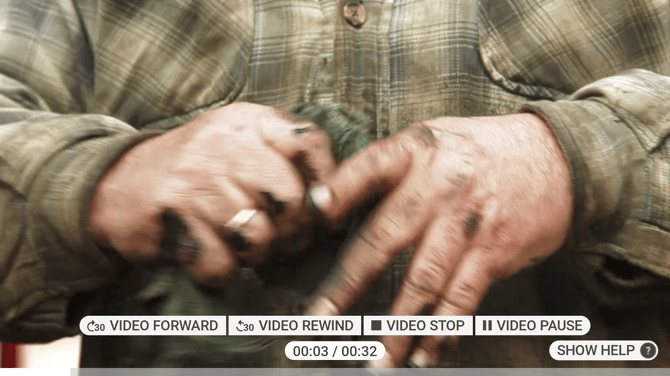
| Voice Command | Action |
|---|---|
| "VIDEO PAUSE" | Pauses playback. |
| "VIDEO PLAY" | Resumes a paused video. |
| "VIDEO FORWARD" | Skips forward 30 seconds. |
| "VIDEO REWIND" | Skips back 30 seconds. |
| "VIDEO STOP" | Stops playback and returns to the folder. |
| "SELECT VOLUME" followed by a level | Sets the volume. |
| "SELECT BRIGHTNESS" followed by a number from 1 to 10 | Sets the screen brightness. |
The volume levels your device offers are listed when you say "SHOW HELP".
Say "MORE OPTIONS" while a file is open for the commands that act on the file rather than on playback. "DELETE" removes the file, after a confirmation. "VIEW NEXT" and "VIEW PREVIOUS" move to the next or previous file in the folder. Each appears only when it applies, so there is no "VIEW NEXT" on the last file in a folder.
Playing an audio file
Audio files use their own commands, and brightness does not apply.
| Voice Command | Action |
|---|---|
| "AUDIO PAUSE" | Pauses playback. |
| "AUDIO PLAY" | Resumes a paused file. |
| "AUDIO FORWARD" | Skips forward. |
| "AUDIO REWIND" | Skips back. |
| "AUDIO STOP" | Stops playback and returns to the folder. |
Messages
File may be corrupt means the file itself is damaged.
File is currently unavailable means the device cannot reach the file, which happens when it is on a drive that has been removed.