The language selector sets the language the interface is displayed in. It appears during first boot as part of setting up the device, and can be opened again at any time afterwards.
Opening the language selector
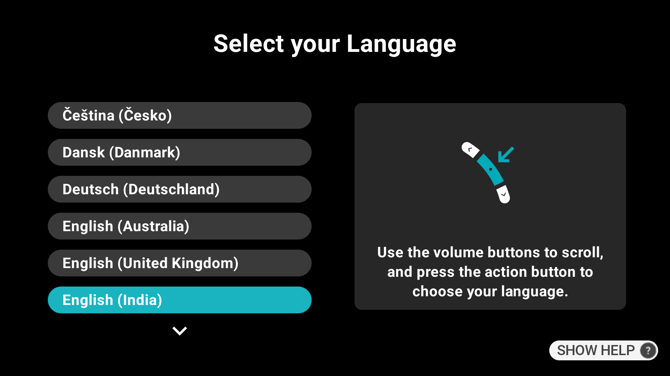
Press and hold the action button. The Select your Language screen opens, listing the languages available on your device.
Choosing a language
Each language is listed in its own name and region, so German appears as “Deutsch (Deutschland)” and Czech as “Čeština (Česko)”. The language the device is using now is highlighted when the screen opens.
You can move through the list in three ways:
- Press the volume buttons to scroll up and down.
- Press the action button to choose the highlighted language.
- Say “NEXT PAGE” or “PREVIOUS PAGE” to move a page at a time.
An arrow at the bottom of the list shows when there are more languages below.
Confirming your choice
After you choose a language, a confirmation screen shows the language you picked and offers two buttons:
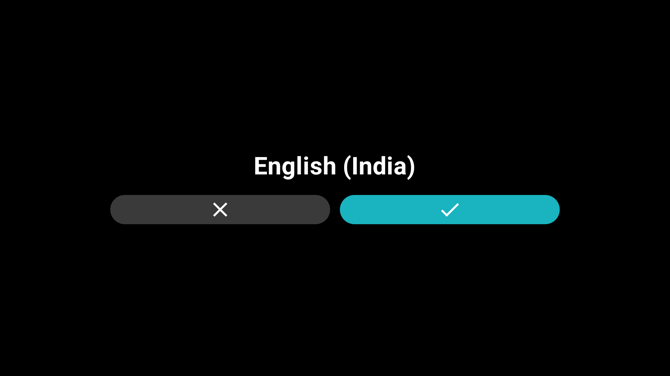
- The checkmark on the right applies the language and restarts the interface in it. It is selected by default.
- The X on the left returns to the list without changing anything.
Which languages are available
By default the screen lists every language the device supports.
Ari Business can shorten that list, so a managed device may show only the languages chosen for your organisation. It cannot add a language the device does not support.