A factory reset returns the device to the state it shipped in. Perform a factory reset before transferring a device to another user, before enrolling it in a management system, or when support requests it.
Everything on the device is erased. Files, accounts, settings, installed apps: all of it. Take anything worth keeping off the device first, because there is no way back afterwards.
From the settings
Use this route whenever the device still works.
- Say "MY PROGRAMS", then "ADVANCED SETTINGS".
- Say "SYSTEM", then "RESET OPTIONS".
- Choose the option to erase all data.
- Confirm. The device asks twice, which is deliberate rather than a fault.
The device erases itself and restarts into first-run setup.
From recovery mode
Use this route when the device will not start properly, or when you cannot reach the settings.
- Turn the device off.
- Hold the power button and volume up together for more than six seconds. An Android figure with No command appears.
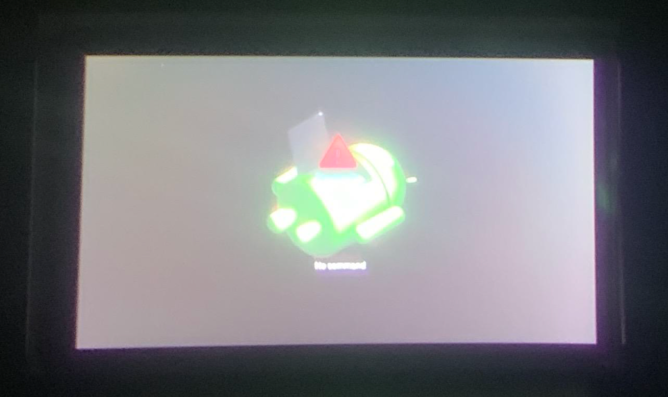
- Hold the power button and press volume up once, then release both. The recovery menu appears.
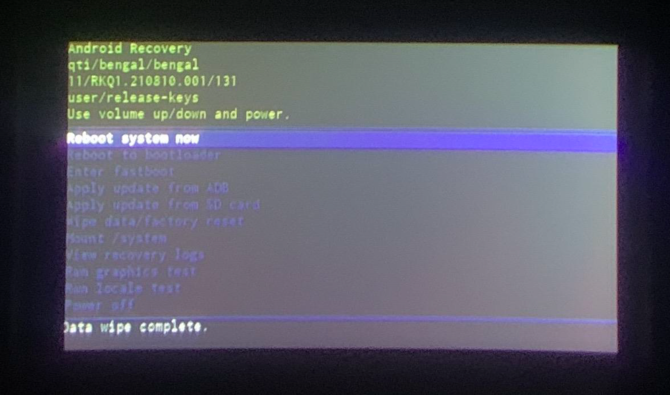
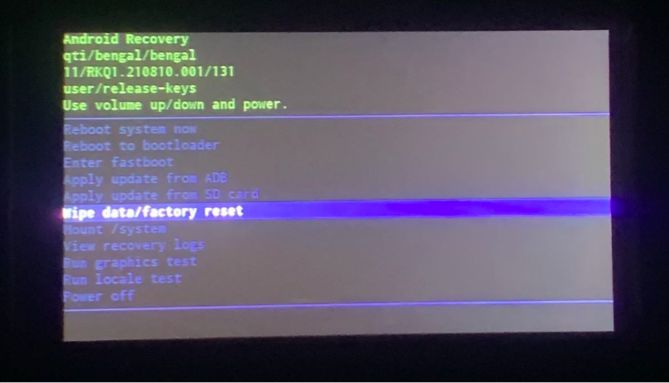
- Use volume up and volume down to highlight Wipe data/factory reset, and press the power button to choose it.
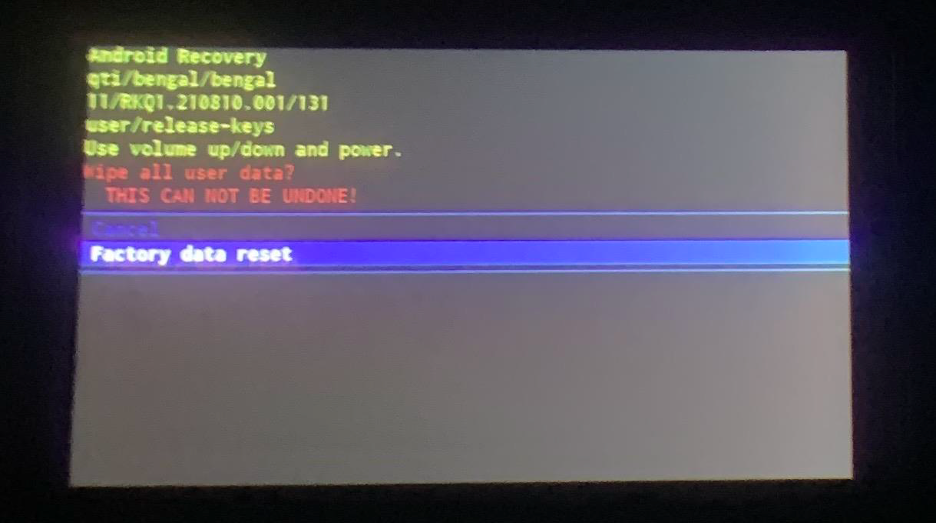
- Highlight Factory data reset and press the power button again.
- When it finishes, choose Reboot system now.
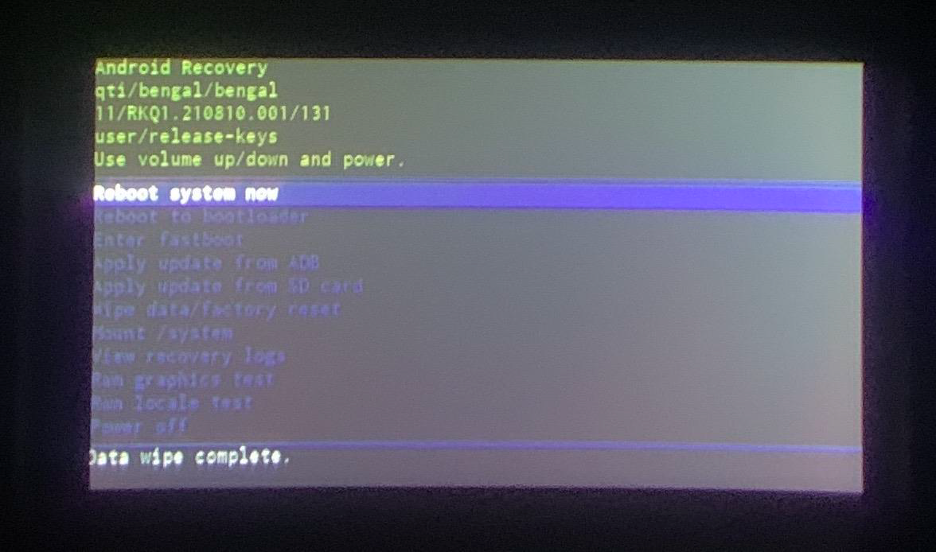
There is no voice control in recovery mode. It runs below the software that listens, so the buttons are the only way through it.
After the reset
The device starts on first-run setup: choosing a language, connecting to Wi-Fi, and the training tutorial. Set it up as you would a new one.
If the device is going into a management system, do the enrolment now, while it is still in this state. Enrolment only works on a device that has not been set up yet.