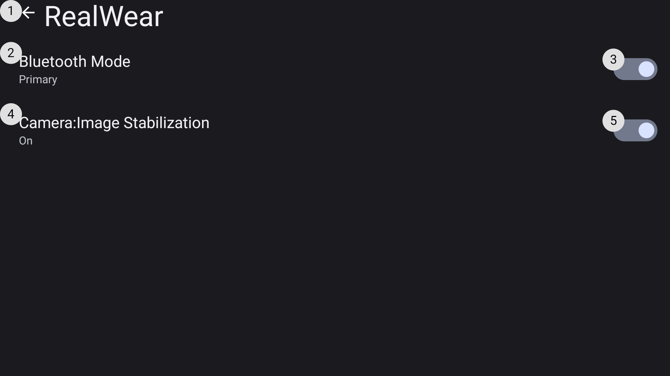
Bluetooth is turned on and off from My Settings, and devices are paired from the full Bluetooth settings.
Opening Bluetooth
From any screen, say “MY SETTINGS”, then say “BLUETOOTH”.
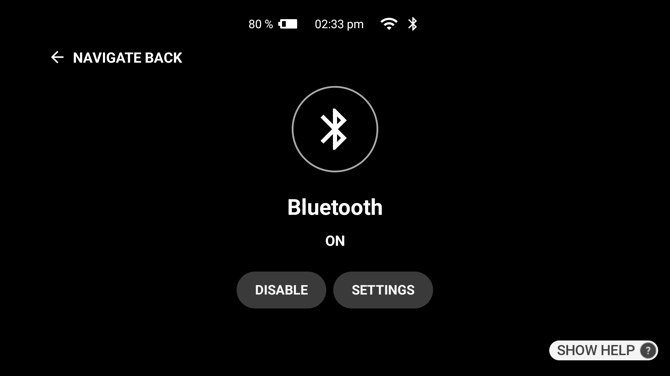
The screen shows what Bluetooth is doing at the moment:
| Shown | Meaning |
|---|---|
| Off | Bluetooth is turned off. |
| On | Bluetooth is on, with nothing connected. |
| Searching | The device is looking for something to connect to. |
| A device name | Bluetooth is on and connected to that device. |
Turning Bluetooth on and off
One of these two options is offered, depending on the current state:
| Voice Command | Action |
|---|---|
| “ENABLE” | Turns Bluetooth on. Offered when it is off. |
| “DISABLE” | Turns Bluetooth off. Offered when it is on. |
To leave without changing anything, say “NAVIGATE BACK”.
Pairing a device
Say “SETTINGS” to open the full Bluetooth settings, where you can pair the device with a headset, a speaker or a phone. Pairing is done there rather than from My Settings.
Choosing Primary or Secondary mode
The device can act in one of two Bluetooth roles.
| Mode | What the device does |
|---|---|
| Primary | Connects to audio devices such as Bluetooth earpieces and speakers. |
| Secondary | Connects to a phone and acts as its microphone and headset. |
To change it, say “MY SETTINGS”, then “ADVANCED SETTINGS”, then “REALWEAR”. Turn Bluetooth Mode on for Primary or off for Secondary. The mode the device is in now is shown beneath the setting.