Every Ari OS device has an Action Button. Where it sits on the headset differs between devices, but what it does does not.
What each press does
| Press | What happens |
|---|---|
| A single press | Whatever the button is set to. Out of the box that is returning to Ari Home. |
| A single press while the microphones are muted | Turns the microphones back on. This works whatever the button is set to. |
| Three presses | Switches between the front and the rear microphones, on a device that has both. |
| A hold of about half a second | Opens Ari, on a device that has the Ari assistant. |
| A hold of about three seconds | Opens the language selector. |
A double press does nothing, so there is no need to be careful about pressing twice.
Changing what a single press does
Say "MY SETTINGS", go to the page holding Action Button, and say "ACTION BUTTON". The current setting is shown under the name.
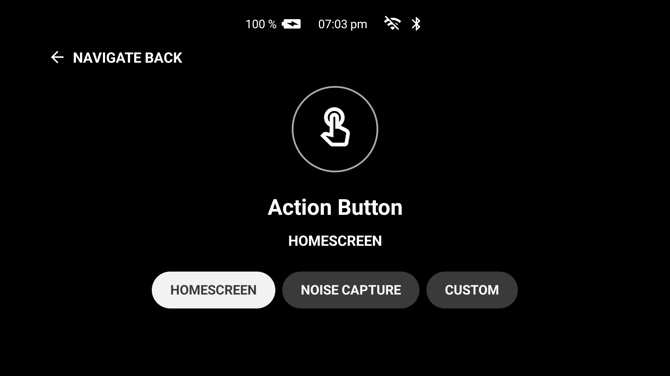
| Setting | What a single press then does |
|---|---|
| "HOMESCREEN" | Returns to Ari Home. This is the default. |
| "NOISE CAPTURE" | Turns noise cancellation off so the microphones pick up the sound around you, and on again with another press. |
| "CUSTOM" | Nothing by itself. The press is passed to an app that has been set up to use it. |
Noise Capture
Noise cancellation is what lets the device hear you over machinery. Turning it off allows a recording or a call to carry the sound of the equipment, which is required when a remote participant needs to hear the machinery.
While noise capture is on, voice commands stop working, and the device says so on screen. That is deliberate: with noise cancellation off, the sound the microphones are picking up would set off commands you did not intend. Press the button again to end it.
Custom
On "CUSTOM" the button does nothing on its own and the holds are switched off as well. It exists so that an application can take the button over for its own purpose. Use this setting only if an application on your device requires it.